
Download myWritings – lightweight, fast, and secure word processor for Mac & Windows
Overview
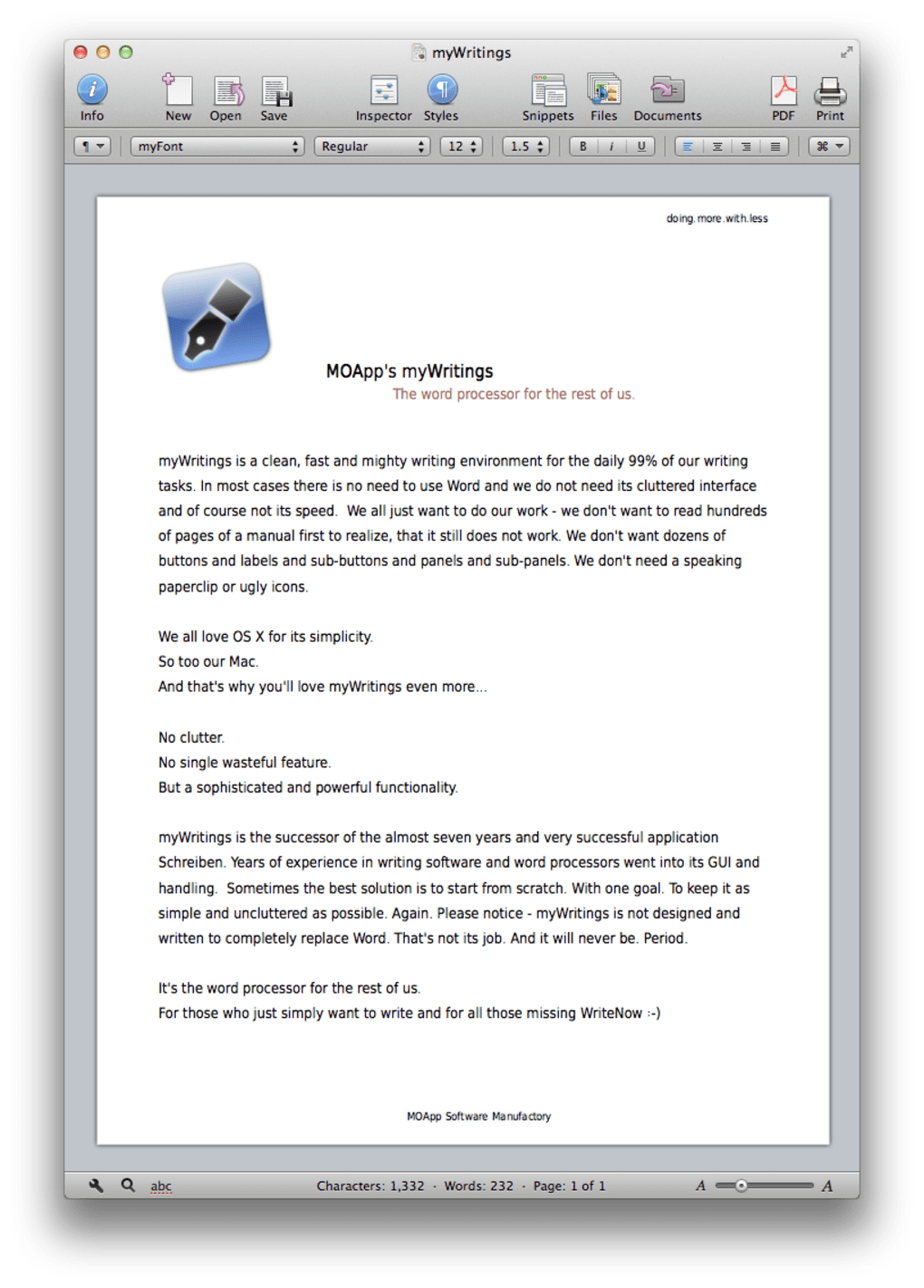
myWritings is a super‑simple and lightweight word processor designed for anyone who wants a distraction‑free writing environment. Unlike bloated suites such as Microsoft Word, myWritings strips away every unnecessary button, ribbon, and cloud‑based feature, leaving only the core tools needed to create clean, readable documents. The interface is intentionally minimal: a spacious toolbar at the top houses the essential Save, Print, and Export to PDF commands, while a word‑and‑character counter rests at the bottom, giving you instant feedback on length.
The application includes a decent built‑in spell checker, basic text‑formatting options (bold, italic, underline, text colour), and the ability to customize the toolbar with a few extra buttons if you like a bit more flexibility.
What myWritings does not provide are advanced features such as real‑time collaboration, extensive template libraries, or multimedia integration. If your workflow depends on live co‑authoring or inserting charts, tables, and images, you’ll need a more feature‑rich editor.
However, for novelists, journalists, students, and professionals who spend the majority of their day typing, myWritings offers a refreshing alternative that focuses on the most important part of any project – the writing itself. The latest 2.0 update, built for macOS 10.7 Lion, introduces a rewritten code base, a sophisticated focus view, and full‑screen mode, ensuring the app runs smoothly on modern systems while keeping its signature light footprint.
Feature Set & Customization
- Ultra‑lightweight design – runs on less than 30 MB of RAM.
- Clean, clutter‑free interface with a single top toolbar.
- Essential document actions: Save, Print, Export to PDF.
- Live word and character counter displayed at the bottom.
- Built‑in spell checker with language support for English.
- Basic text formatting: bold, italic, underline, colour changes.
- Toolbar customization – add or remove buttons for colour, underline, etc.
- Focus view – hide the toolbar for a full‑screen distraction‑free mode.
- Full‑screen support for macOS 10.7 and later.
- Info sheet integration for quick document metadata access.
While myWritings keeps the feature list intentionally short, each tool is crafted for speed and reliability. The Export to PDF function produces a clean, print‑ready file without the need for additional plugins. The focus view is particularly useful for writers who prefer a “Zen” environment: activating full‑screen mode removes all UI elements, leaving only the text area.
Although the app does not support real‑time collaboration, you can still share finished documents by exporting them as PDF or plain text files.
Customization is straightforward. By right‑clicking the toolbar, you can drag new buttons onto the bar or remove those you never use.
This level of personalization is rare among lightweight editors and allows you to tailor the workspace to your exact preferences without compromising the app’s speed. For users who need occasional colour changes or underlining, the added buttons provide that flexibility while still keeping the interface minimal.
Installation, Usage & Compatibility
How to Install myWritings
Downloading myWritings is as simple as clicking the Download button on the official website. The installer is available for both macOS and Windows:
- macOS: A .dmg file that you drag into the Applications folder.
- Windows: A .exe installer that guides you through a typical “Next‑Next‑Finish” process.
Getting Started with the Editor
Upon opening myWritings, you are greeted with a blank document and the minimal toolbar at the top. Begin typing; the word‑and‑character counter updates in real time at the bottom of the window. To format text, simply highlight the portion you want to change and click the appropriate toolbar button (e.g., B for bold).
If you need to change the toolbar layout, right‑click the bar, choose “Customize Toolbar,” and drag the desired icons onto the bar.
Saving works like any traditional desktop app: Ctrl+S (Windows) or ⌘+S (macOS) opens the save dialog. By default, documents are stored in the “myWritings” folder within your Documents directory, but you can select any location.
The built‑in PDF exporter is accessed via File → Export → PDF**, creating a clean, print‑ready file instantly.
Compatibility
myWritings is built to run on the latest desktop operating systems while maintaining a low system footprint:
- macOS: Fully compatible with macOS 10.7 Lion and later (including macOS 12 Monterey and macOS 13 Ventura). The latest 2.0 update adds Full‑screen Mode and Focus View specifically for macOS 10.7+.
- Windows: Supports Windows 10 and Windows 11 (64‑bit). The installer automatically detects the appropriate architecture.
Pros, Cons, FAQ & Final Thoughts
Pros
- Lightning‑fast launch and minimal RAM usage.
- Distraction‑free interface that keeps the focus on writing.
- Essential features (save, print, PDF export) work flawlessly.
- Easy toolbar customization for personalized workflow.
- Full‑screen and focus view modes enhance concentration.
- Secure, signed installer – safe to download and install.
Cons
- Lacks advanced formatting tools, templates, and multimedia support.
- No real‑time collaboration or cloud syncing.
- Limited language support in the spell checker (English only).
- Some macOS‑specific features are unavailable on Windows.
Frequently Asked Questions
Is myWritings completely free?
Yes, myWritings is offered as a free download for both macOS and Windows. There are no hidden fees or premium upgrades.
Can I open and edit existing .docx files?
myWritings supports plain‑text (.txt) and rich‑text (.rtf) formats. It cannot directly open .docx files; you’ll need to convert them to .rtf or .txt first.
Does the application store my documents in the cloud?
No. All files are saved locally on your computer. This design enhances privacy and ensures you can work offline without an internet connection.
How does the spell checker work?
The built‑in spell checker underlines misspelled words in red. Right‑clicking a highlighted word shows suggested corrections. Currently, it supports only English dictionaries.
Is there a way to add custom keyboard shortcuts?
myWritings does not include a native shortcut manager, but you can use your operating system’s keyboard‑shortcut settings (e.g., macOS Automator or Windows PowerToys) to create custom shortcuts for common actions.
Conclusion & Call to Action
If you’ve been frustrated by feature‑laden word processors that slow you down, myWritings offers a breath of fresh air. Its ultra‑lightweight footprint, clean UI, and essential export options make it the perfect companion for anyone whose primary goal is to write without distraction. While power users may miss advanced formatting and collaboration tools, the app’s stability, security, and free price point more than compensate for those omissions.
Ready to experience a streamlined writing workflow? Free USD – click the download button below, install on your Mac or Windows PC, and start writing in seconds. Embrace simplicity; let myWritings handle the basics while you focus on the story you want to tell.







